|
|
![]() ![]()
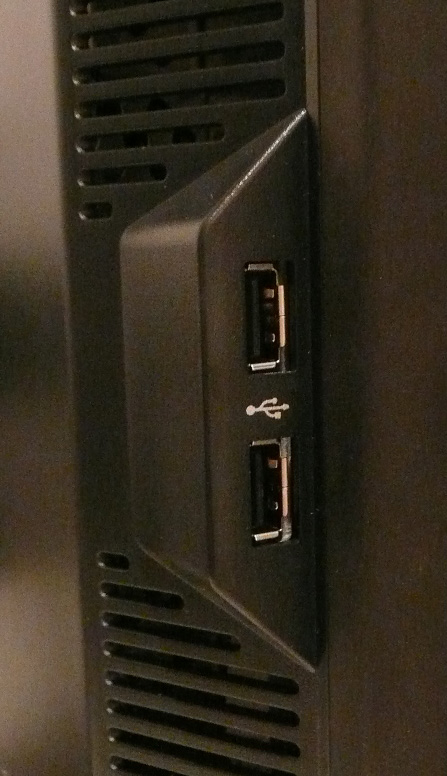
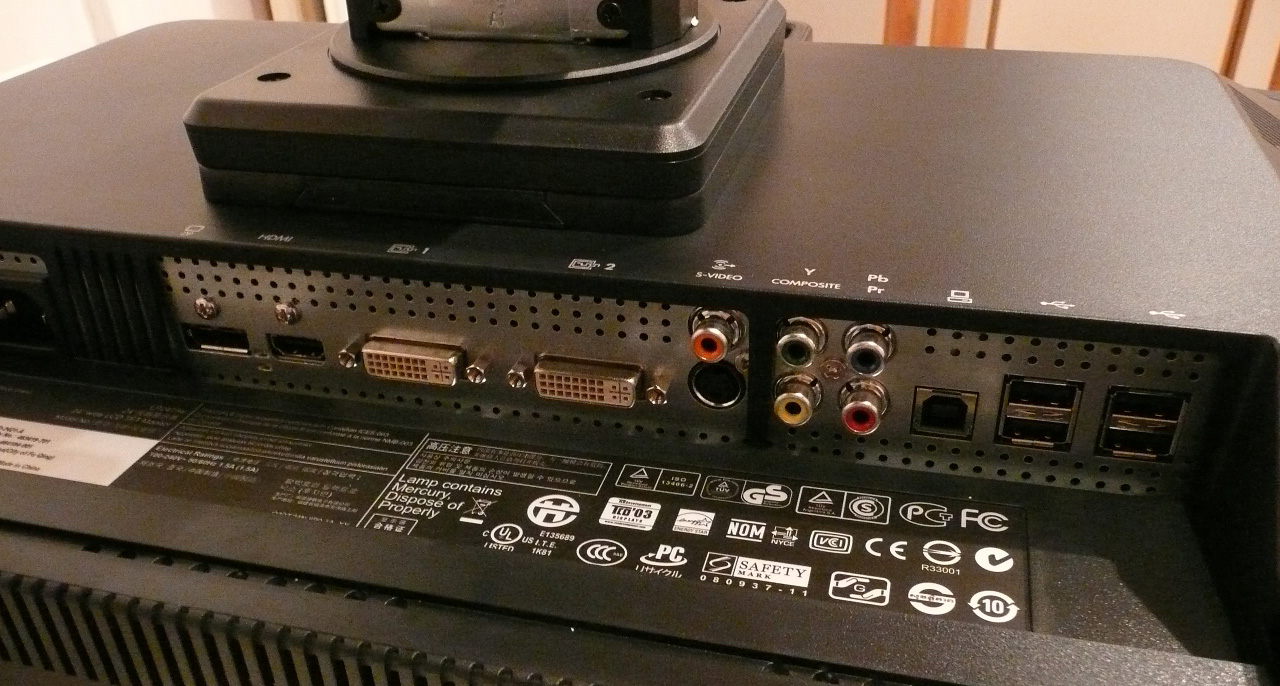
接口图
![]()
Colour Accuracy, Black Depth and Contrast
The HP LP2475W utilises an 8-bit H-IPS panel, capable of producing a true 16.7 million colours. The screen uses enhanced W-CCFL backlighting and so it's colour gamut covers 92% of the NTSC colour space.
Default settings of the screen were as follows:
Monitor OSD Option
| Default Setting
| Brightness
| 90
| Contrast
| 80
| RGB
| n/a
| Colour Temperature Mode
| 6500k
|
![]()
HP LP2475W - Default Settings (Default 6500k Colour Mode)
![]()
![]()
| Default Settings
| luminance (cd/m2)
| 357
| Black Point (cd/m2)
| 0.45
| Contrast Ratio
| 793:1
|
The screens default settings were considerably over-bright, and you could immediately feel this when you started to work with it. Our colorimeter revealed the default luminance to be a pretty high 357 cd/m2, not far off the specified maximum brightness of 400 cd/m2 even! You could tell that you would need to adjust the brightness of the screen straight away. Considering the OSD brightness control was defaulted at 90%, this should be easy enough to adjust later on anyway. With this high luminance value, we recorded the default black depth at 0.45 cd/m2, giving a static contrast ratio of 793:1. This was a little out from the specified 1000:1, which is perhaps a little hopeful for an IPS matrix, but very close to 800:1 which is a decent performance for an IPS screen.
As you can see from the measurements on the left of the image above, the default gamma was actually very good, being only 2% out, and rounded to 2.2 overall; this being the default for computer monitors and for the Windows operating system and sRGB colour space. Despite the default preset colour mode of ''6500k' being selected, the recorded colour temperature was actually only 5553k, quite a way out from the desired value (by 15%), that being the colour temperature of daylight.
![]() In a new test, I wanted to see how much variance there was in the screens contrast as we adjusted the monitor setting for brightness. In theory, brightness and contrast are two independent parameters, and good contrast is a requirement regardless of the brightness adjustment. Unfortunately, such is not the case in practice. We recorded the screens luminance and black depth at various OSD brightness settings, and calculated the contrast ratio from there. All other monitor and graphics card settings were left at default. It should be noted that we used the BasICColor calibration software here to record these, and so luminance at default settings varies a little from the LaCie Blue Eye Pro report.
In a new test, I wanted to see how much variance there was in the screens contrast as we adjusted the monitor setting for brightness. In theory, brightness and contrast are two independent parameters, and good contrast is a requirement regardless of the brightness adjustment. Unfortunately, such is not the case in practice. We recorded the screens luminance and black depth at various OSD brightness settings, and calculated the contrast ratio from there. All other monitor and graphics card settings were left at default. It should be noted that we used the BasICColor calibration software here to record these, and so luminance at default settings varies a little from the LaCie Blue Eye Pro report.
OSD Brightness | Luminance
(cd/m2)
| Black Point (cd/m2)
| Contrast Ratio ( x:1)
| 100
| 356
| 0.45
| 790
| 90
| 355
| 0.45
| 789
| 80
| 315
| 0.40
| 788
| 70
| 282
| 0.36
| 783
| 60
| 255
| 0.33
| 774
| 50
| 231
| 0.29
| 797
| 40
| 207
| 0.27
| 765
| 30
| 181
| 0.23
| 786
| 20
| 155
| 0.20
| 777
| 10
| 129
| 0.16
| 807
| 0
| 103
| 0.13
| 793
|
While brightness is reduced, the black depth improves quite nicely as well, reaching a very impressive 0.13 cd/m2 at 0% brightness. This is very respectable for an IPS matrix, and the best black depth we have recorded on such technology so far in our reviews. During these brightness changes, the contrast remains pretty static and within the range of 774:1 to 807:1. Very good performance in this regard, showing that with proper backlight adjustments you can achieve not only comfortable settings for every day use, but retain a decent contrast and black point throughout the range.
The results were plotted on the above graph, showing the contrast stability of the screen. You can adjust the brightness setting to anywhere within the 0 - 100% range without really impacting contrast ratio. As you reduce the brightness setting, luminance is adjusted nicely, and black depth improves as one would hope.
|
|


 IP卡
IP卡 狗仔卡
狗仔卡
 发表于 2008-9-10 11:12

 QQ好友和群
 收藏
收藏 分享
分享 好贴
好贴 烂贴
烂贴 提升卡
提升卡 置顶卡
置顶卡 沉默卡
沉默卡 喧嚣卡
喧嚣卡 变色卡
变色卡 显身卡
显身卡 楼主
楼主